For Windows Users
-
To install MS SQL Server and SSMS you follow this 👉🏻 tutorial
-
To restore the AdventureWorks database sample you can follow the step below:
Open your SQL Server Management Studio and Restore .bak file
Once you have downloaded the above file, open your local SQL Server Management Studio, using which we will be restoring the above downloaded .bak file.
Now, right-click on “Databases” and select “Restore Database”
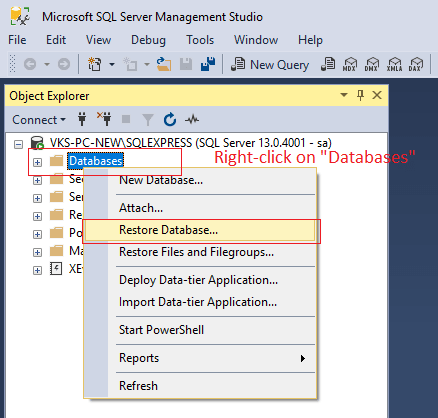
From the new pop-up, select “Device”-> “Browse” -> “Add” ( From new pop-up)
Click on “Add”-> Navigate to “E:AdventureWorks.bak” and Select it, Click “Ok” and then again click “Ok”
Once the restore is ready, you will screen like below
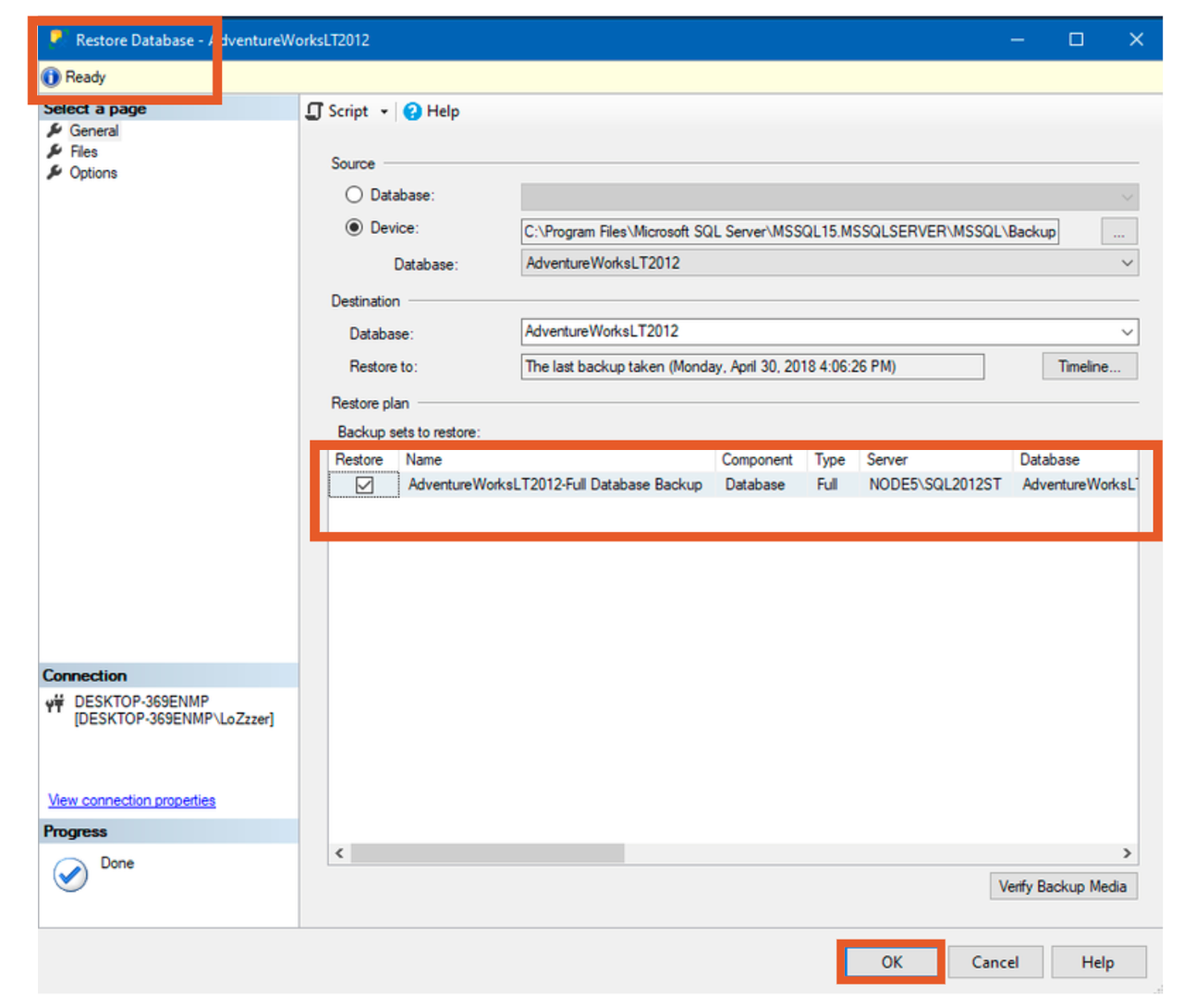
Click OK and the Database will be restored completely.
For macOS user
-
After you finish your download you will get the .dmg file.
Double-click Docker.dmg to open the installer, then drag the Docker icon to the Applications folder.

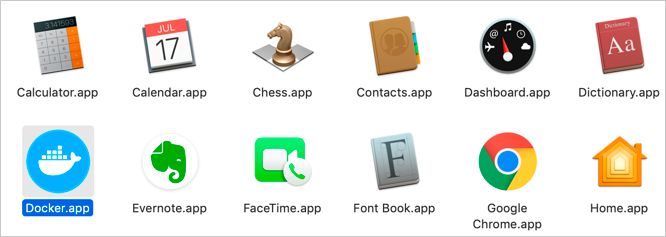
2. Double-click Docker.app in the Applications folder to start Docker. In the example below, the Applications folder is in “grid” view mode.
3. The Docker menu displays the Docker Subscription Service Agreement window. It includes a change to the terms of use for Docker Desktop. Click Accept.
You can check all guides and details on 👉🏻 Install Docker Desktop on Mac. Install Docker Desktop on Mac
4. Install Microsoft SQL Server 2019 docker image
-
Open the new Terminal screen and execute the
docker pull mcr.microsoft.com/mssql/server:2019-latest command on the Terminal screen as seen below.

-
After the SQL Server 2019 docker image download is completed, the docker image can be launched within a new “Docker Container” by executing the docker command in the format shared below on the Terminal screen.
sudo docker run -e "ACCEPT_EULA=Y" -e "SA_PASSWORD=Eralper@6"
-p 1433:1433 --name sqlserver2019 -d mcr.microsoft.com/mssql/server:2019-latest
-
If the “docker run” command is successfully executed, when the following “docker” command is executed the “container” status will be “Up” in the output result list.
sudo docker ps -a
5. Install Azure Data Studio on macOS
If you install and run SQL Server 2019 docker container on your Mac computer using Docker, to interact with the SQL Server instance the easiest and comfortable method is to use a SQL Server client tool.
Azure Data Studio for macOS is a SQL client tool developed by Microsoft which is similar to SQL Server Management Studio for your Mac
You can download macOS for Azure Data Studio from this link.
After you complete the download, double click on the zipped or compressed file and drag the Azure Data Studio.app file to Applications folder. Now among Applications you can see Azure Data Studio too.
After you launch Azure Data Studio, SQL developers can create a connection to the SQL Server instance running on the docker container as seen below.

After the connection is validated using a test connection, the SQL queries and SQL Server application codes can be developed on the GUI provided by Azure Data Studio.
6. To restore AdvertureWorks database sample by following the step below:
-
Click START on your SQL Server name

-
Go to open Azure Studio. Double – click on SQLServerMac > Restore > Backup file > (file ‘s name : AdvertureWorks )> click Restore


Now you are all done with the environment set up, good luck🤗!